Navigating the world of Mac gaming can sometimes feel like a puzzle, especially when you're eager to dive into Steam's vast library. This guide is your ultimate resource for everything related to how to download Steam on Mac, ensuring a smooth setup and an optimized gaming experience. We understand that as a busy gamer, balancing work, family, and your passion for pixels means you need straightforward, reliable information. From initial download steps to troubleshooting common issues and discovering Mac-compatible titles, we cover it all. Get ready to expand your gaming horizons, connect with friends, and find your next favorite game. We'll show you how to effortlessly install Steam, tackle performance hurdles, and make the most of your Apple machine for gaming. This isn't just about installation; it's about unlocking a new dimension of fun, relaxation, and competitive play tailored for the modern Mac user. Whether you're a casual player or a dedicated enthusiast, learning to download Steam on Mac is your gateway to an expansive digital playground.
What is the easiest way to download Steam for my Mac?
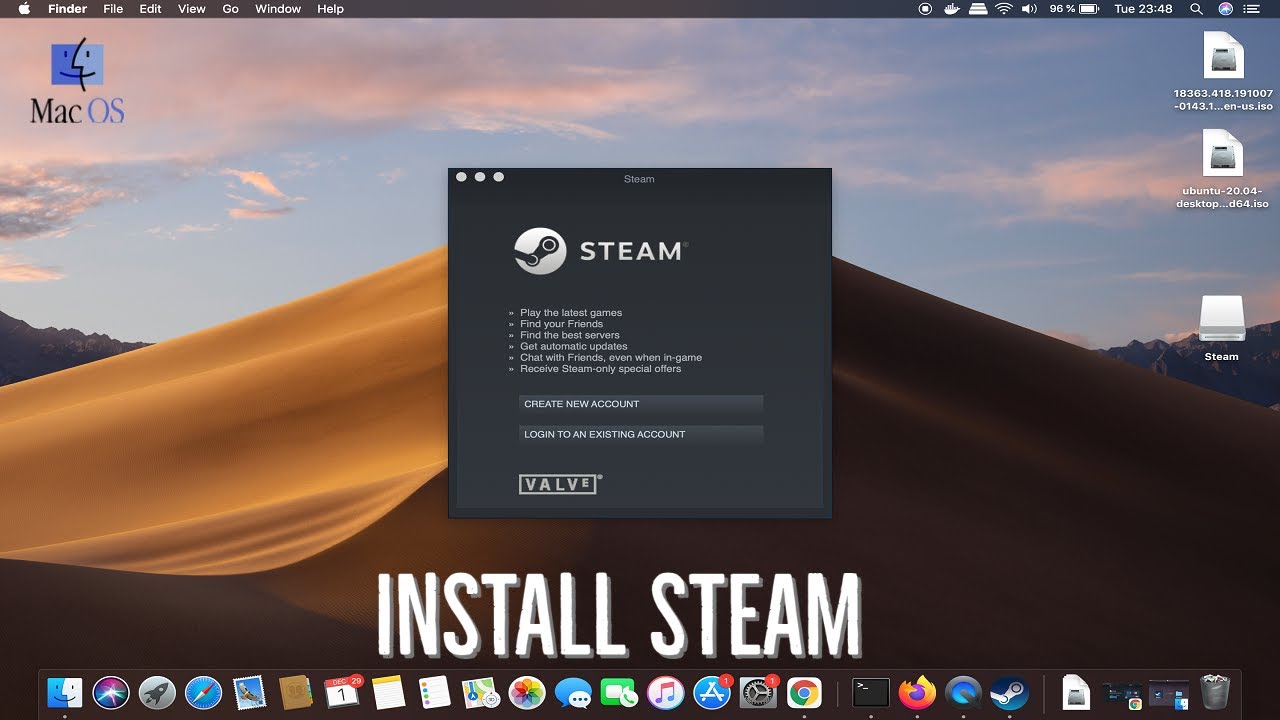
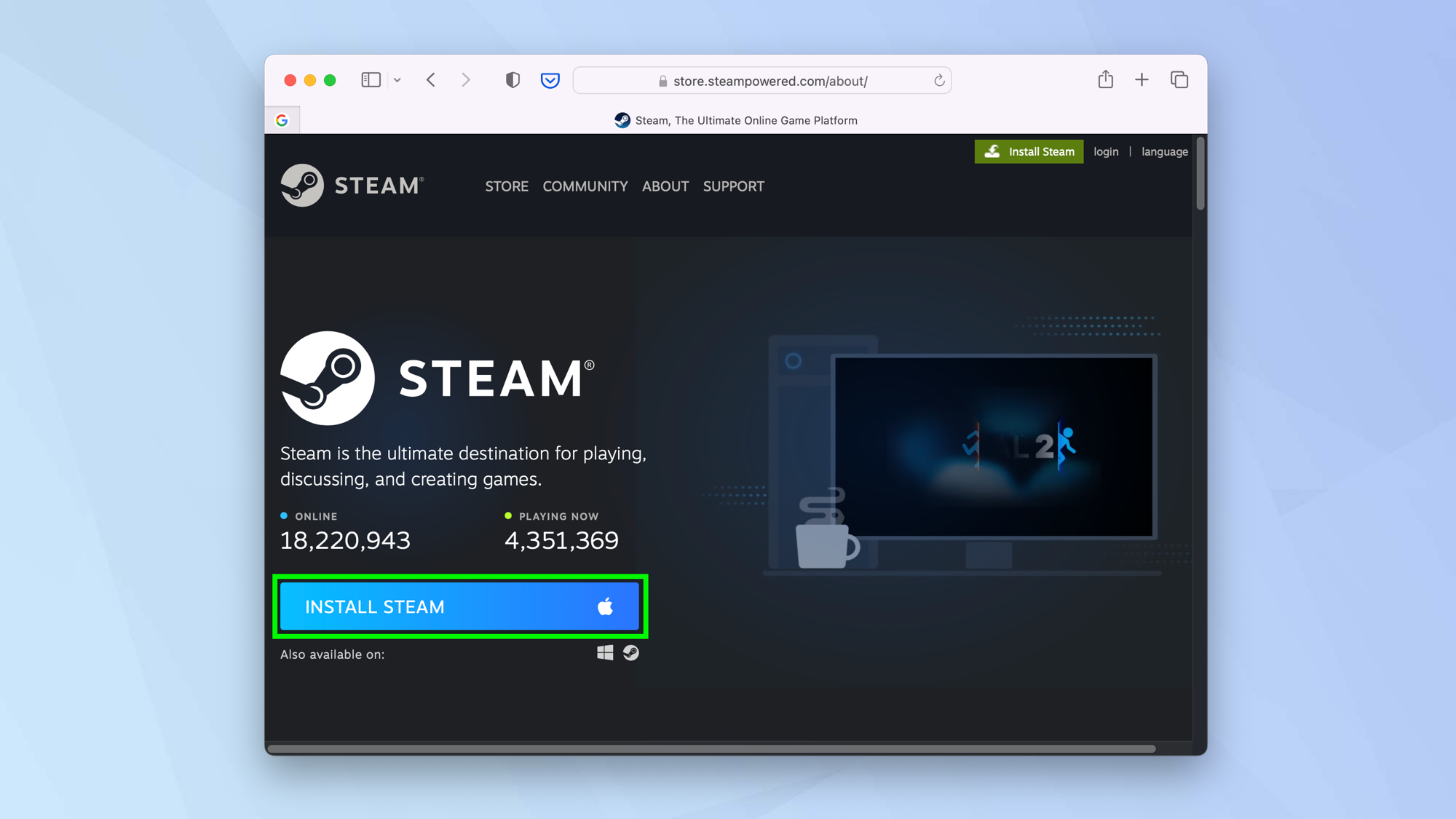
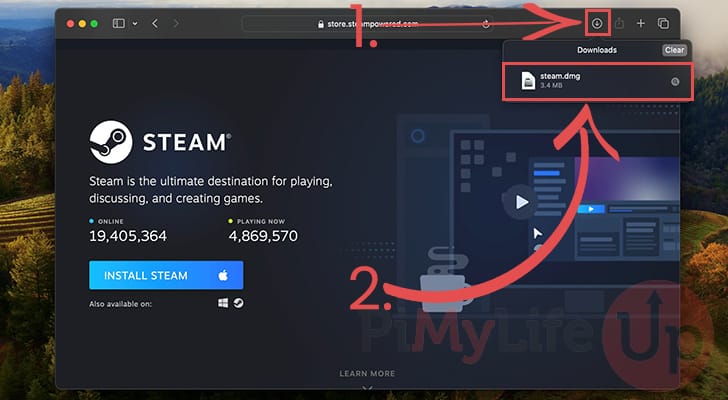
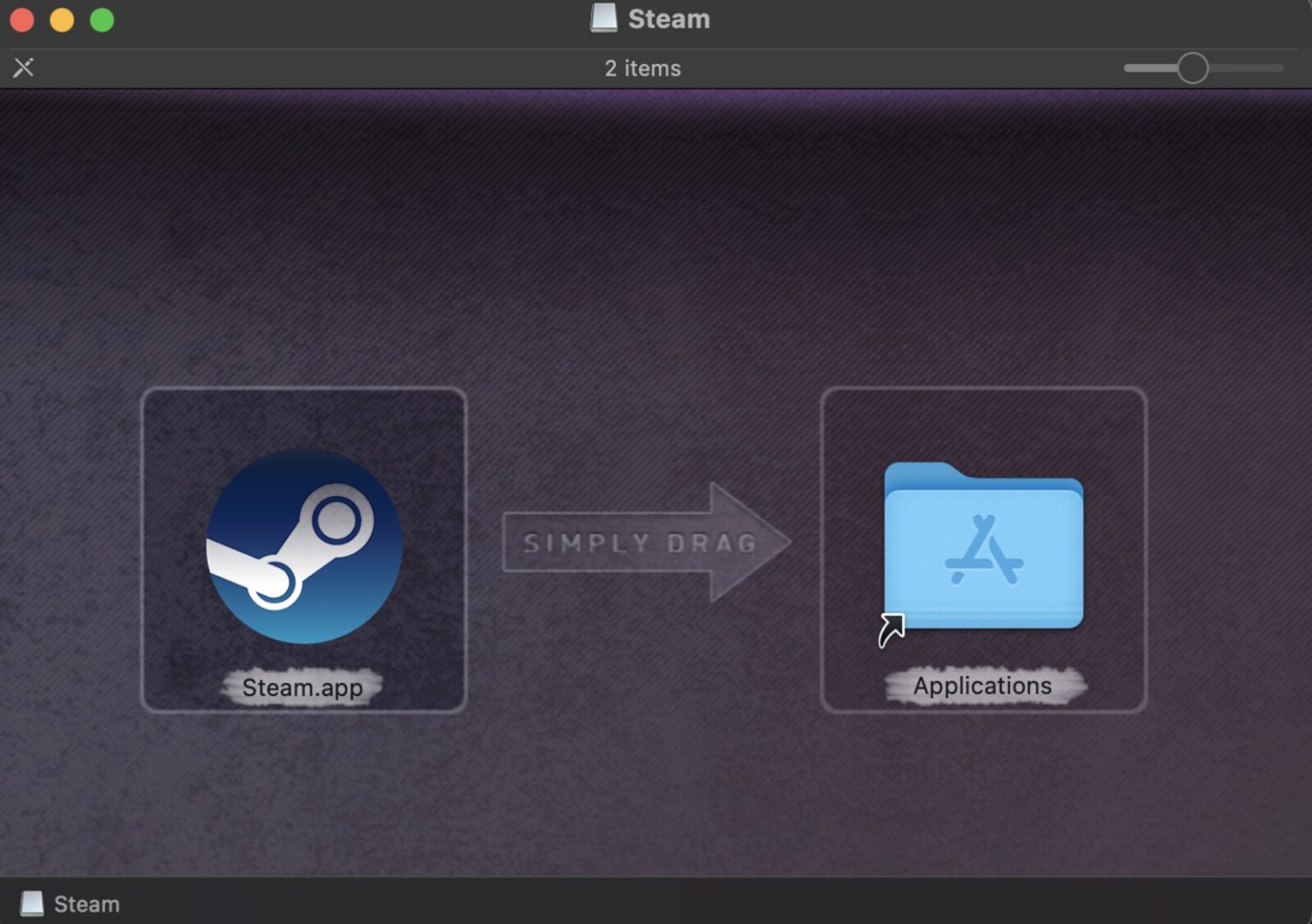
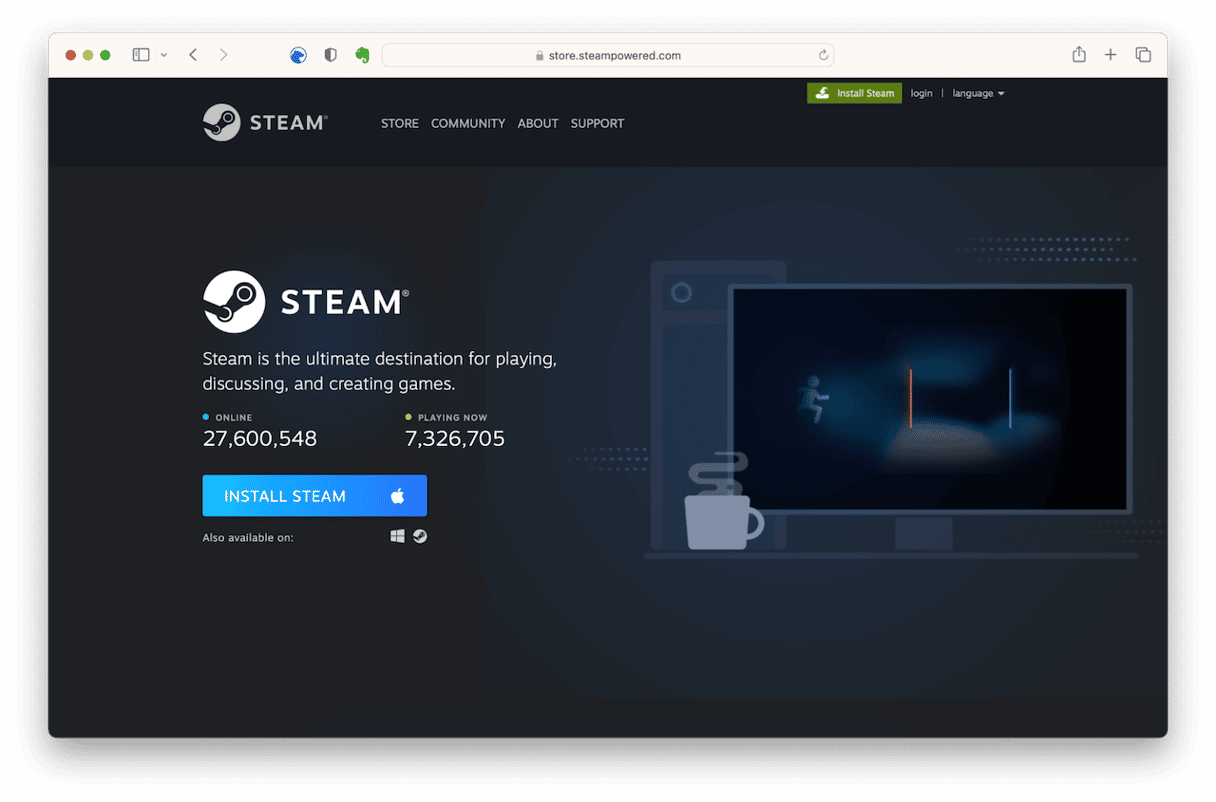
The easiest way to download Steam for your Mac is by visiting the official Steam website. Simply open your web browser, navigate to store.steampowered.com, and click the 'Install Steam' button typically found at the top right of the page. This will download the 'Steam.dmg' installer file, which you then double-click and drag the Steam icon into your Applications folder. It's a straightforward process that gets you gaming quickly.
Why should a Mac user download Steam for gaming?
Mac users should download Steam for gaming because it unlocks access to thousands of titles, ranging from major blockbusters to beloved indie games, many of which are Mac compatible. Steam provides an organized library, automatic updates, powerful social features to connect with friends, and frequent sales, making it a comprehensive and cost-effective platform to enjoy a diverse range of gaming experiences on your Apple device.
Where can I find Mac-compatible games on Steam?
You can easily find Mac-compatible games on Steam by using the platform's filtering options. When browsing the Steam store, look for the 'Platforms' filter on the left-hand sidebar and select 'macOS'. This will display only games that natively support your Mac. Additionally, individual game pages clearly show a macOS icon under their system requirements, confirming compatibility before you purchase.
How do I troubleshoot Steam installation problems on macOS?
Troubleshooting Steam installation problems on macOS often involves checking a few key areas. Ensure you have enough free disk space (at least 1GB for the client). If macOS Gatekeeper blocks the installation, go to System Settings > Privacy & Security and click 'Open Anyway'. A common fix for corrupted downloads is to simply redownload the 'Steam.dmg' file from the official website, ensuring a stable internet connection.
Is it really worth downloading Steam on a Mac for serious gaming?
For many gamers, downloading Steam on a Mac is absolutely worth it, even for serious gaming. While not every AAA title is natively supported, a significant and growing number are, especially with Apple Silicon's power. Steam offers robust multiplayer, community features, and a vast, diverse library that caters to all types of players. It provides a legitimate and convenient way to access high-quality gaming experiences that go beyond casual mobile games.
Who benefits most from using Steam on their Apple computer?
Gamers who benefit most from using Steam on their Apple computer are those seeking a diverse game library, cross-platform play with PC friends, and a strong online community. It's ideal for individuals who appreciate indie games, strategy titles, or popular multiplayer experiences available on macOS. Busy adults who want convenient access to a vast array of games for relaxation and social engagement find Steam on Mac highly beneficial.
When is the best time to buy games after I download Mac Steam?
The best time to buy games after you download Mac Steam is during one of Steam's many sales events. Major seasonal sales like the Summer Sale, Winter Sale, or Halloween Sale offer deep discounts across the entire library. Additionally, Steam frequently runs weekly and daily deals. Keeping an eye on your wishlist notifications or checking the Steam store regularly will ensure you snag games at their lowest prices, optimizing your gaming budget.
Are you a Mac user who loves gaming, but sometimes feels left out of the vast PC gaming world? We get it. Balancing a demanding job, family life, and still carving out time for some well-deserved relaxation and fun through gaming can be a challenge. You want to unwind, maybe build some skills, or simply connect with friends online, but dealing with complex setups or performance bottlenecks on your Mac can be a real buzzkill. The good news? Your Mac is more capable than you think, and getting started with the ultimate digital game store is incredibly straightforward. This comprehensive guide will walk you through exactly how to download Steam on Mac, optimize your experience, and tackle any common hurdles, transforming your Apple computer into a powerful gaming hub.
Today, gaming isn't just a niche hobby; it's a massive cultural phenomenon. Recent US gaming statistics show that a whopping 87% of gamers play regularly, often logging 10+ hours a week. Social gaming continues its meteoric rise, with platforms like Steam being central to connecting friends across different machines. While mobile gaming dominates in sheer numbers, the depth and community found on platforms like Steam remain unparalleled. So, if you're ready to dive into thousands of titles, from indie gems to AAA blockbusters, and join millions of fellow gamers, let's get your Mac Steam experience up and running smoothly. We're here to make sure your journey to download Mac Steam is as seamless as possible, so you can spend less time troubleshooting and more time gaming.
How Do I Download Steam on My Mac?
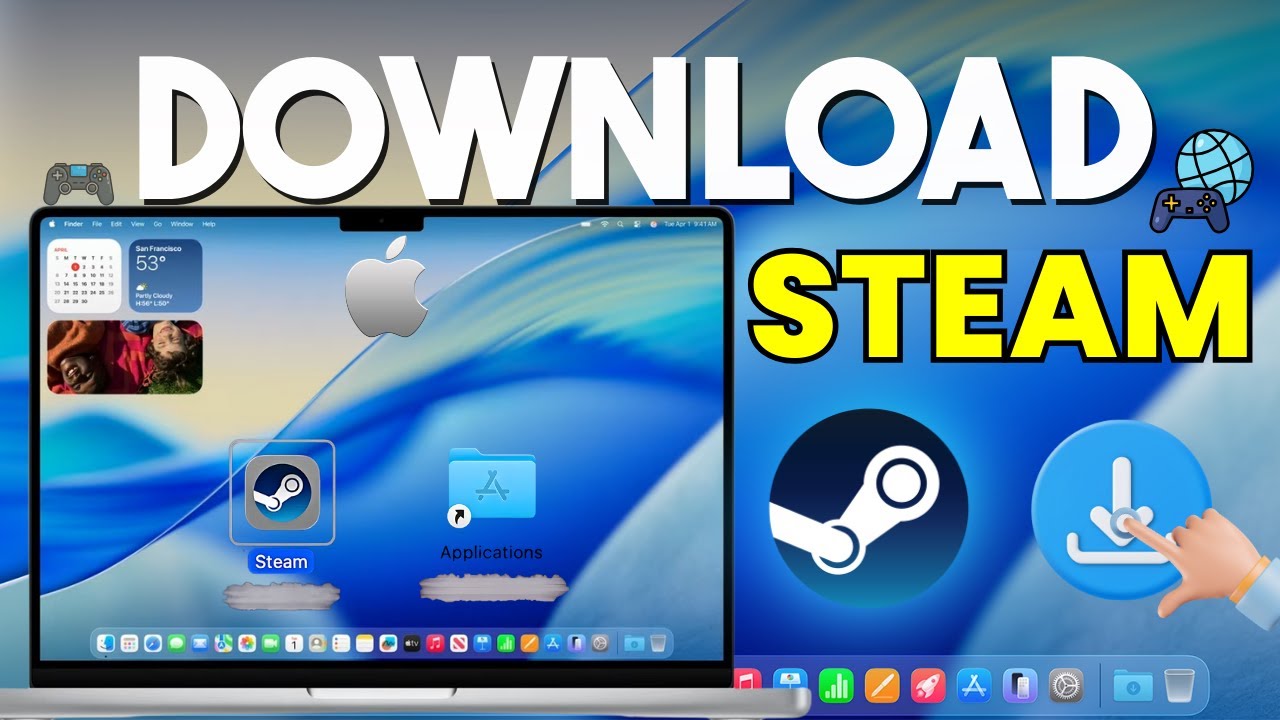
Getting Steam onto your Mac is surprisingly simple. First, you'll want to open your preferred web browser, like Safari or Chrome, and navigate directly to the official Steam website. Look for a prominent button that says 'Install Steam' or 'Download Steam'. This is typically located in the top right corner of the homepage. Clicking this button will usually detect your operating system and offer the correct macOS version for download. Once the Steam installer package, typically named 'Steam.dmg', has finished downloading, locate it in your Downloads folder. Double-click the .dmg file to open it. A new window will appear, usually showing the Steam application icon and an Applications folder shortcut. Drag and drop the Steam icon directly into your Applications folder. This action copies the application to your Mac. Once the transfer is complete, you can eject the .dmg file by dragging its icon from your desktop to the Trash or by right-clicking it and selecting 'Eject'. Finally, open your Applications folder and double-click the Steam icon to launch it. The first time you launch Steam, it will download necessary updates and install itself, which might take a few minutes depending on your internet speed. After this, you'll be prompted to log in or create a new Steam account, and then you're ready to explore the vast gaming universe.
What Are the Minimum System Requirements for Steam on Mac?
While `download mac steam` is easy, ensuring your Mac can run games smoothly requires checking its specifications. Generally, Steam itself is quite lightweight, but the games you play will demand more. For Steam to function, you'll need macOS 10.13 (High Sierra) or newer. It's recommended to have at least 4GB of RAM, though 8GB or more is ideal for modern gaming. A dual-core Intel processor is usually sufficient for the client, but for games, an Intel Core i5 or better, or an Apple Silicon chip, will offer a much smoother experience. Graphics-wise, integrated graphics can handle older or less demanding indie titles, but a dedicated GPU (if your Mac has one) or the M-series chips from Apple are crucial for more graphically intensive games. Always check individual game requirements on their Steam store page, as these can vary wildly. Keeping your macOS up-to-date also ensures you have the latest drivers and optimizations, which can significantly impact performance.
Why Isn't Steam Installing on My Mac? Troubleshooting Common Issues
Sometimes, despite following the steps to `download mac steam`, you might encounter hiccups. One common issue is insufficient disk space. Before starting the installation, ensure you have at least 1GB free for the client, plus ample space for games (many modern titles can be 50GB or more!). Another frequent problem is security settings. macOS Gatekeeper might block applications downloaded from 'unidentified developers'. To resolve this, go to System Settings (or System Preferences) > Privacy & Security. If you see a message about Steam being blocked, click 'Open Anyway'. Ensure your internet connection is stable, as interruptions during the initial update can corrupt files. Corrupted downloads are also a possibility; try redownloading the 'Steam.dmg' file if installation consistently fails. If you previously had Steam installed, leftover files might cause conflicts. Consider a clean uninstall (see 'How do I uninstall Steam from my Mac completely?' below) before attempting a fresh installation. Finally, incompatible macOS versions can cause issues; ensure your system meets the minimum macOS 10.13 requirement.
Are There Good Games Available on Steam for Mac Users?
Absolutely! The perception that Macs aren't for gaming is outdated. While not every game is Mac-compatible, the Steam library for macOS is vast and constantly growing. Many popular titles, particularly in the indie and strategy genres, run natively on Mac. You'll find hits like Stardew Valley, Hades, Disco Elysium, Baldur's Gate 3, Divinity: Original Sin II, and many more. Social and cozy games, a popular trend this month, are well represented, offering perfect ways to unwind after a long day or connect with friends. Free-to-play options like Apex Legends (if compatible with your OS/hardware), Dota 2, and Team Fortress 2 also offer endless hours of entertainment without breaking the bank. Always check the system requirements and the 'Mac' icon on a game's Steam store page before purchasing to ensure compatibility. The gaming community is vibrant on Mac, and you'll find plenty of options whether you're into competitive multiplayer or relaxing single-player experiences.
How Can I Optimize Steam Game Performance on My Mac?
Optimizing performance on your Mac after you `download mac steam` can make a huge difference. First, ensure your macOS is up-to-date; Apple frequently releases performance improvements. Close all unnecessary background applications before launching a game, especially memory-intensive ones like web browsers with many tabs. In-game settings are your best friend: lower resolutions, texture quality, shadow details, and anti-aliasing can significantly boost frame rates. For MacBooks, plugging into power can also enhance performance by allowing the CPU/GPU to draw more wattage. Consider using a utility like Activity Monitor to identify and quit resource-hogging processes. If your Mac has a dedicated GPU, ensure games are using it over integrated graphics if possible (though macOS usually handles this automatically). For Apple Silicon Macs, Rosetta 2 does an excellent job emulating Intel-based games, but native Apple Silicon versions will always perform better if available. Sometimes, restarting your Mac before a gaming session can clear out temporary files and improve overall responsiveness.
Can I Play With My PC Friends If I Download Mac Steam?
Yes, absolutely! One of the biggest advantages of using Steam is its robust cross-platform functionality. As long as a game supports cross-play between macOS and Windows, you can seamlessly join your PC-owning friends in multiplayer sessions. Most major multiplayer titles available on both platforms offer this feature. Games like Valheim, Counter-Strike 2, or Rust (depending on their current Mac support) often allow friends on different operating systems to play together. Steam's built-in friends list and chat features make it easy to invite and communicate with your buddies. Many gamers also use external communication apps like Discord while playing, which further bridges any platform gaps. So, when you `download mac steam`, you're not just getting access to games, you're plugging into a global network of gamers, ensuring you can relax and socialize with your circle no matter what machine they're on.
How Do I Manage My Game Library and Updates on Mac Steam?
Managing your game library and updates on Steam for Mac is very intuitive. Once you've logged in, your 'Library' tab displays all your owned games. You can sort them by various criteria like 'Installed', 'Favorites', or 'Recent', and use the search bar to find specific titles quickly. To install a game, simply select it from your library and click the 'Install' button. Steam will prompt you for an installation location (if you have multiple drives) and then begin downloading. For updates, Steam typically handles them automatically in the background, especially for games you play frequently. You can check for pending updates in your 'Downloads' section or by right-clicking a game in your library and selecting 'Properties' > 'Updates'. If you have limited internet data or prefer manual control, you can configure individual games to 'Only update this game when I launch it' or disable automatic updates altogether from the 'Updates' tab within a game's properties. This level of control helps busy gamers manage their data usage and ensures games are ready when they have time to play.
Is It Safe to Purchase Games and Use My Payment Info on Steam Mac?
Yes, purchasing games and using your payment information on Steam for Mac is generally very safe and secure. Steam, owned by Valve Corporation, uses industry-standard encryption protocols (like SSL) to protect your personal and financial data during transactions. When you enter your credit card details or link a PayPal account, that information is encrypted before being sent over the internet. Steam also offers robust account security features, including Steam Guard, which provides two-factor authentication. Enabling Steam Guard on your mobile device adds an extra layer of protection, requiring a unique code from your phone whenever you log in from a new device. This significantly reduces the risk of unauthorized access to your account. Always ensure you are downloading Steam from the official website and avoid clicking suspicious links to protect yourself from phishing attempts. Millions of transactions occur on Steam daily, and maintaining user security is a top priority for the platform.
What If My Mac Is Older? Can I Still Download Mac Steam?
If your Mac is a bit older, you might still be able to `download mac steam`, but your gaming experience will be more limited. As mentioned, Steam requires macOS 10.13 (High Sierra) or newer. If your Mac can't update to at least that version, you won't be able to run the current Steam client. Even if your macOS version is compatible, an older Mac with a less powerful processor or integrated graphics will struggle with modern, graphically intensive games. However, don't despair! The Steam library is massive, and it includes thousands of older indie games, retro titles, and less demanding experiences that run perfectly well on older hardware. Think about classic point-and-click adventures, turn-based strategy games, or 2D platformers. It's all about managing expectations and choosing games that match your Mac's capabilities. Check game requirements carefully, and perhaps look for games released several years ago, as they are more likely to run smoothly.
How Do I Uninstall Steam From My Mac Completely?
Completely uninstalling Steam from your Mac is a two-step process to ensure all files are removed. First, quit the Steam application entirely. Make sure it's not running in the background (you can check Activity Monitor if unsure). Next, open your Applications folder and drag the 'Steam' application icon to the Trash. This removes the main client. However, Steam also stores game data, user preferences, and support files in various library folders. To remove these, open Finder, click 'Go' in the menu bar, and then hold down the 'Option' key to reveal the 'Library' folder. Click 'Library'. Inside the Library folder, look for and delete the following folders: 'Application Support/Steam', 'Caches/com.valvesoftware.Steam', and 'Preferences/com.valvesoftware.Steam.plist'. Be careful not to delete other unrelated files! Once these are in the Trash, empty the Trash. This ensures a clean removal. If you plan to reinstall Steam later, this thorough cleanup can prevent potential conflicts or issues from old corrupted files.
Final Thoughts on Your Mac Gaming Journey
So, there you have it! Downloading Steam on your Mac and diving into the world of PC gaming is not just possible, but genuinely accessible. We’ve covered everything from the straightforward installation process to optimizing your games, troubleshooting common issues, and connecting with a vibrant community. For gamers balancing life’s demands, your Mac can be a fantastic portal for relaxation, skill-building, and social play. The key is knowing how to set things up right and leverage the platform's strengths. With 87% of US gamers regularly enjoying their passion, and social experiences trending this month, there's never been a better time to optimize your Mac for gaming.
What's your biggest gaming challenge on Mac? Comment below and let's conquer it together!
FAQ
What is Steam? Steam is the largest digital distribution platform for PC games, offering a vast library of titles, multiplayer functionality, social networking features, and automatic game updates. It's an essential hub for many gamers.
Is Steam free to download on Mac? Yes, the Steam client itself is completely free to download and install on your Mac. You only pay for the games you choose to purchase from the Steam store.
Does Steam slow down my Mac? The Steam client itself uses minimal resources when idle. However, running graphically intensive games through Steam can certainly tax your Mac's CPU, GPU, and RAM, potentially slowing down other processes. Closing background apps helps.
Can I use a controller with Steam on Mac? Absolutely! Steam has excellent controller support. You can connect Xbox, PlayStation, or other compatible gamepads to your Mac via Bluetooth or USB, and Steam will often recognize them automatically for in-game use.
How often does Steam have sales? Steam is famous for its frequent sales events, including major seasonal sales (Summer Sale, Winter Sale, Halloween Sale, etc.) and weekly/daily deals. These sales are a fantastic way for budget-conscious gamers to expand their library cheaply.
Are all Steam games compatible with Mac? No, not all Steam games are Mac compatible. Developers decide which platforms their games support. Always check the game's store page for the macOS icon and system requirements before purchasing. Many popular titles do offer Mac versions.
What is the benefit of downloading Steam on a Mac?
Downloading Steam on a Mac opens up a massive library of games, from indie darlings to AAA titles, many of which are Mac compatible. It provides a robust platform for managing your game library, connecting with friends through its social features, and taking advantage of frequent sales. It transforms your Mac into a capable gaming machine, perfect for unwinding and enjoying high-quality entertainment.
How do I improve game performance on Steam for macOS?
To improve game performance on Steam for macOS, first ensure your macOS is updated. Close all unnecessary background applications to free up resources. Adjust in-game graphics settings to lower resolutions, texture quality, or shadow details. For laptops, playing while plugged in can help. Consider using Activity Monitor to identify and quit resource-intensive processes before launching your game for a smoother experience.
What are common issues when trying to download Steam on Mac?
Common issues when trying to download Steam on Mac include insufficient disk space, macOS security settings blocking the installation (Gatekeeper), interrupted downloads leading to corrupted files, or conflicts with leftover files from previous Steam installations. Ensuring a stable internet connection, granting necessary security permissions, and checking disk space can resolve most problems efficiently.
Easy Steam installation for Mac users, Troubleshooting common download Mac Steam issues, Discovering Mac compatible games on Steam, Optimizing game performance on macOS, Connecting with the Steam gaming community, Managing Steam game library efficiently, Secure purchasing on Steam Mac, Uninstalling Steam from Mac cleanly.
35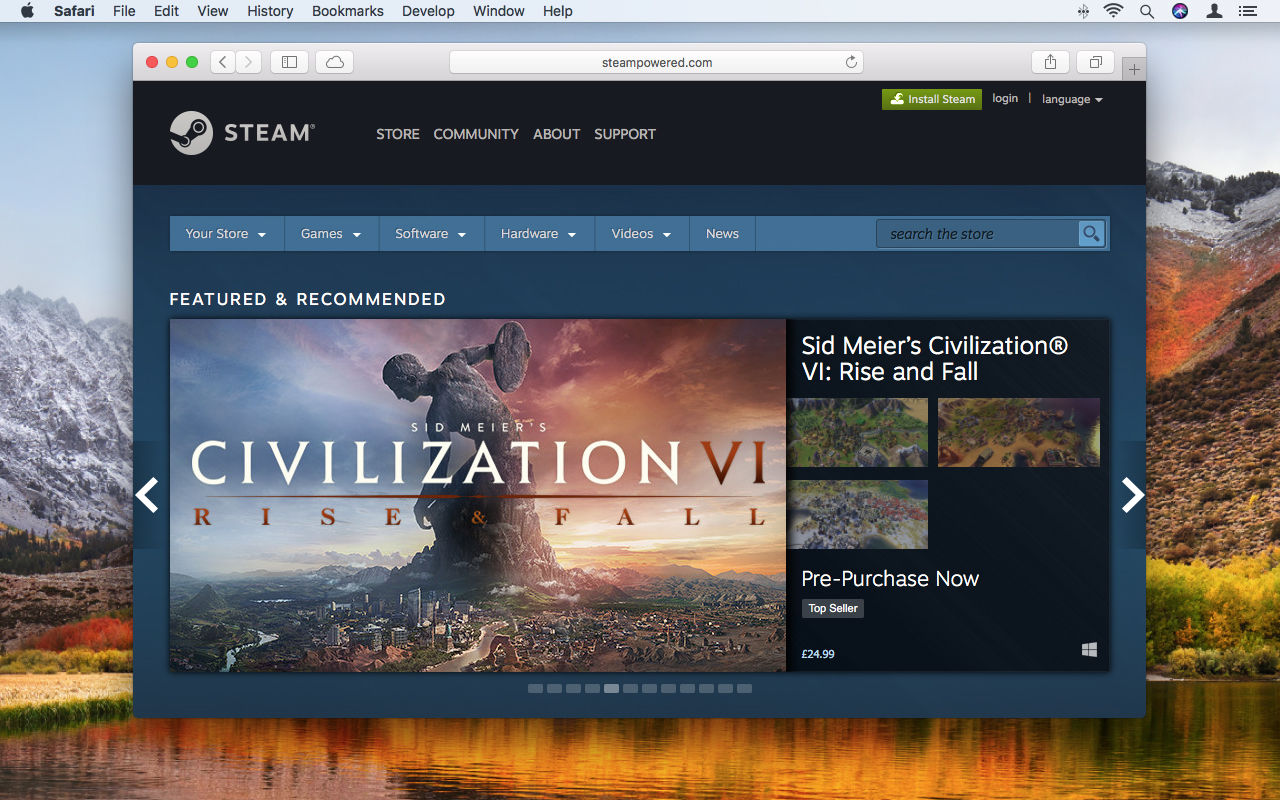

Can You Play Steam Games On Mac Effectively How To Use Steam Mac 1 Website 1280 . Ready To Download Steam Linux How To Get Started How To Download Steam Thumbnail . How To Install Steam On Mac Download Steam Game Software On MacOS . Comment Installer Et Utiliser Steam Sur Mac Os En 2026 Jeux Dans La Bo Te Comment Installer Et Utiliser Steam Sur Mac Os En 2026 . How To Download Install Steam App On Your Mac Install Steam Games On



How To Install Steam On Mac YouTube . How To Download Install Steam Correctly 2026 PC Mac Guide YouTube . How To Download Install Steam On Mac Easy Guide YouTube . How To Install Steam On Mac Tom S Guide . Steam Mac Mac Steam MJLRGX How To Use Steam Mac 2 Downloads Button 1280

Best Mac Apps For 2026 Must Have Tools Cool Apps Steam Mac Download. Steam For Mac How To Download Use Steam On Mac Macsteam. How To Install Steam On MacOS Sequoia How To Install Steam On MacOS . Como Baixar O Steam No Mac Geek Global Download Steam On Mac2 1687459679 . Steam April 2026 Client Update Adds Remote Downloads Management Steam Client April 2026 1024x576




How To Install A Windows Virtual Machine On Mac Robots Net How To Play Windows Steam Games On Mac 1693978261 . Making Steam Work Again On Unsupported MacOS After Screen Shot 2024 12 28 At 5 01 24 Pm Png.2466765. How To Download Steam On Mac A Complete Guide For 2026 Airtable 1.webp. Can You Get Steam On Mac A Complete Guide For 2026 Airtable 1. So L Schen Sie Steam Caches Downloads Und Caches Im Jahr 2026 Launch Steam Mac



MacBook How To Download Install Steam YouTube . How To Download Install Steam On Mac YouTube . Installing Steam On A Mac Pi My Life Up Installing Steam On Mac 04 Begin Steam . Steam Sales 2026 Here S The Schedule For The First Half Of The Year 1824cr953 . Can You Get Steam On Mac Yes Here Is How Can You Get Steam On Mac 1200 628.webp



How To Download Steam On Mac In 2025 A Step By Step Guide Fossbytes Steam Download 3 1536x1082 . Rockstar Games Allegedly Sold Cracked Games On Steam GHacks Tech News Steam To End Support For Windows 32 Bit In 2026 . All 2026 Steam Fest Dates You Should Watch Out For Gamer Org All 2026 Steam Fest Dates You Should Watch Out For . Promo O Steam 2026 Datas Vazadas Confirmadas E O Que Esperar Da Steam Ofertas 1160x653 . Promo O Steam 2026 Datas Vazadas Confirmadas E O Que Esperar Da Steam Desconto


How To Download Steam On Mac Aim Apple YouTube . How To Use Steam On Intel Based M1 Macs Steam For Mac . Steam Mac Install Steam On Mac How To Cover . Can You Download Steam On Mac Here S How To Do It Download Steam On Mac3 1687459423 . How To Install Steam On Mac Easy Step By Step Tutorial Game On Mac